Lead Routing
Part of Marketing asset distribution workflows
Selecting the right asset from a contact's declared interest
An interest field can help select an asset if its options correspond to real reader needs.
An interest field can help select an asset if its options correspond to real reader needs. A broad label such as “growth” may not tell the workflow whether to send an introductory checklist or a technical guide.
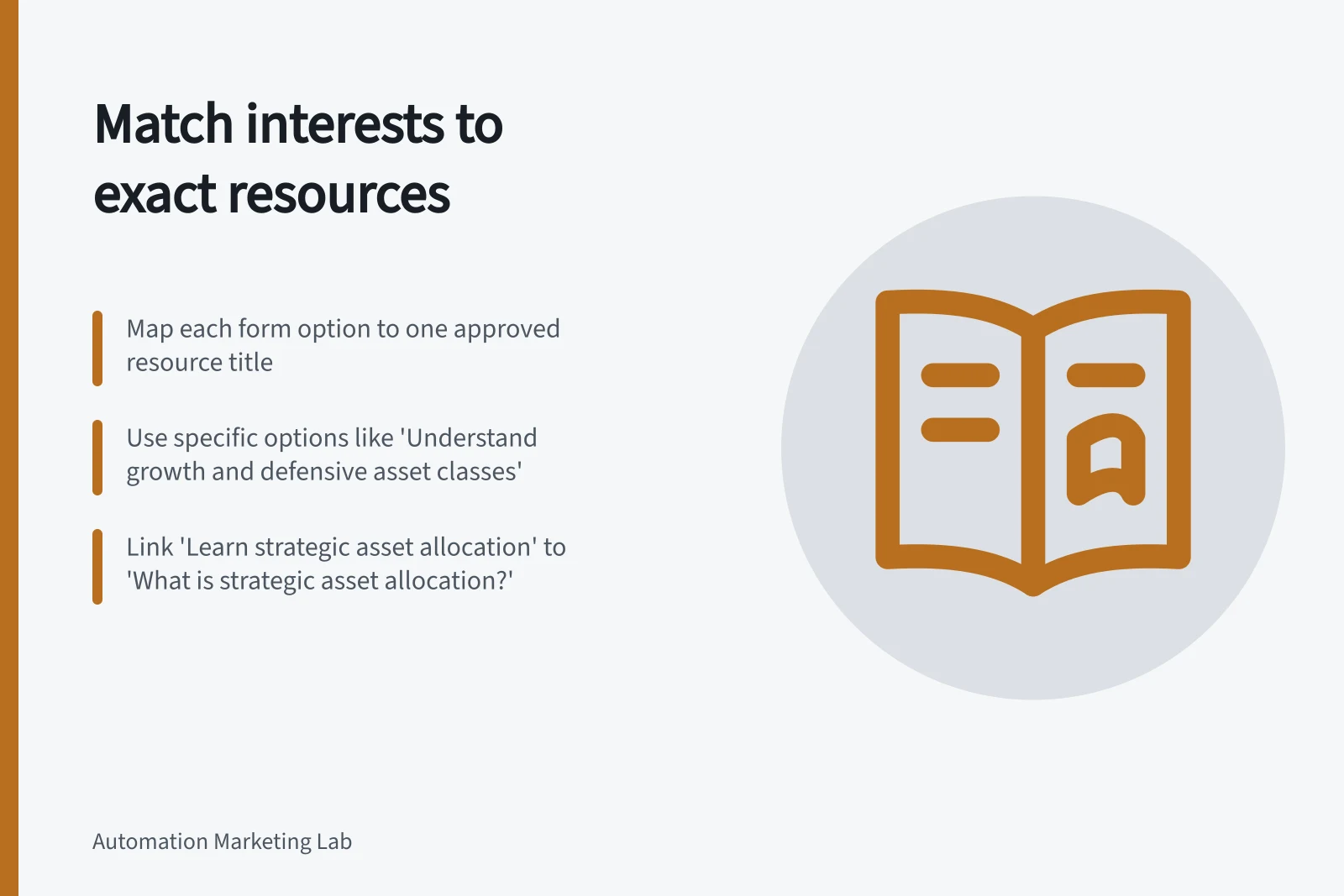
Map every form option to one approved resource. Keep a small resource register pairing each allowed interest value with an exact resource title, and ask only the information needed to make that choice.
For example, map “Understand growth and defensive asset classes” to “Understanding asset classes”, “Explore diversification across asset classes” to “Multi Asset”, and “Learn strategic asset allocation” to “What is strategic asset allocation?” Use these titles only if you have approved the resources and can offer them. The interest value describes the reader’s need; the title identifies the asset.
A standalone “growth” is too broad because it does not say what the reader wants to learn. Prefer a specific option such as “Understand growth and defensive asset classes”, which points to a defined topic and a matching asset.
For a blank or unrecognised value on a form specifically about asset classes, use “Understanding asset classes” as the general fallback. If the form covers topics beyond asset classes, require a valid interest choice rather than sending an unrelated asset.
If two interests are declared, use one resource only when its description explicitly covers both topics; map “Explore diversification across asset classes” to “Multi Asset” only when the selected interests fit that subject. If no single resource covers both, ask the contact to choose one interest rather than sending two by default.
Do not assume a stored profile is current when the person states a different need on the form. Use the latest declared interest for the asset choice.
HubSpot form automations can trigger actions after a submission, such as sending a confirmation email or adding a contact to a segment. Simple workflow examples include sending an email, creating a task, or sending an internal email notification to a team member. The form submission is the default enrolment trigger, and contacts enrol each time the form is submitted, including repeat submissions.
Form automations are available with any subscription, except where additional subscriptions are required for particular features. Free tools allow one “Send an email after form submission” simple workflow per form, with one action; Starter, Professional or Enterprise without Marketing Hub allows one simple workflow per form, with three actions. Marketing Hub Starter allows one simple workflow per form with up to 10 actions, while Marketing Hub Professional or Enterprise allows multiple simple workflows per form and as many actions as needed.
The number and type of simple workflow actions depend on the subscription. Action counts alone do not guarantee that the available action types support your asset-selection logic, so confirm the options in your account before launch.
Test each declared interest with a fictional contact. Verify the actual resource, not only the branch label.
For repeat submissions, do not let an existing contact record obscure the current declared interest; follow the separate guidance for requested-download delivery. Review wrong-asset reports and revise the form wording when people repeatedly choose an option that does not match their expectation. Selection is useful when it reduces the reader’s search work, not when it creates a complicated taxonomy for the marketing team.