Automation Builds
Part of Marketing asset distribution workflows
Delivering a requested download after form submission
After a visitor requests a download, the first response should make the promised resource accessible and explain what happens next.
When a visitor requests a download, the first response should make the promised resource accessible and explain what happens next. Do not make them search a general resource centre or wait for a sales call for something described as immediate.
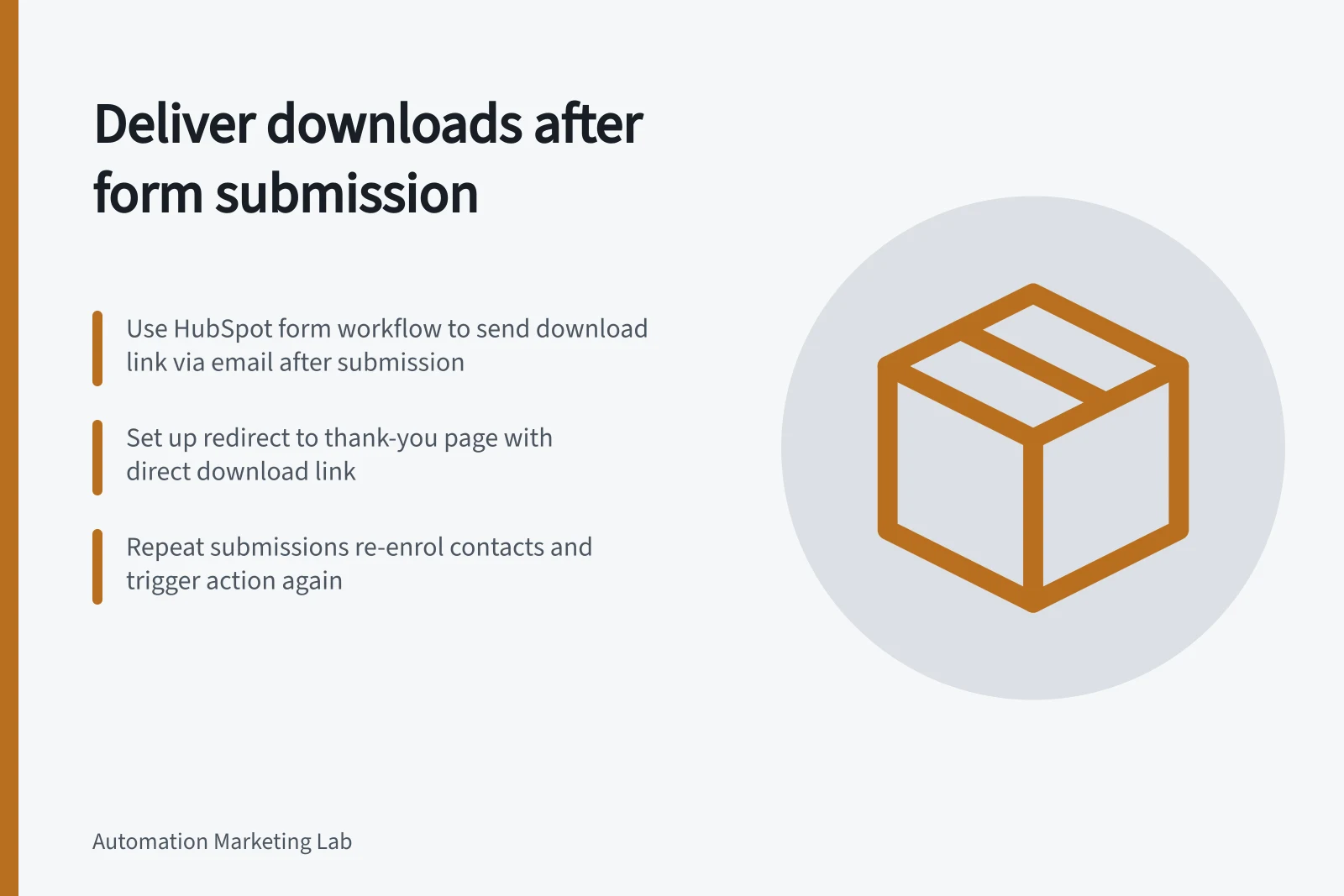
Choose a delivery method and include it in the form’s post-submission setup: send an email with the download link, redirect to a thank-you page that contains the link, or generate a PDF after submission and present its download link where the platform supports it.
In HubSpot, open the form editor and set up a simple workflow for the form. Its default enrolment trigger is the form submission and cannot be changed; configure the workflow to send an email after form submission and include the download link in that email.
HubSpot contacts are enrolled each time the form is submitted, even if they have been enrolled before. A repeat submission therefore triggers the configured action again.
With HubSpot’s free tools, you can create one “Send an email after form submission” simple workflow per form, with one action. A Starter, Professional or Enterprise account without Marketing Hub allows one simple workflow per form and up to three actions; Marketing Hub Starter allows one per form and up to 10 actions, while Marketing Hub Professional or Enterprise allows multiple workflows per form and as many actions as needed.
Creating or editing forms requires Edit forms permission; creating or editing simple workflows in the form editor requires Edit workflows permission. If your Marketing Hub subscription includes marketing contacts, contacts must be set as marketing contacts to receive emails sent from workflows.
For a thank-you-page route, configure the form to redirect after submission and put the download link on the page. Fillout’s advanced forms for Airtable can create custom PDF files from a form submission; use this route only where the resulting PDF can be made available to the visitor.
Define the request contract: which form, which asset version, access method and expected delay. Test an eligible submission, a repeat submission, a typo in the address and an unavailable file before publishing.
For example, an email can say: “Your requested resource, [resource name], is ready: [download link]. If the link does not work, contact [support route].” Use equivalent copy on the thank-you page and state whether the link appears there or arrives by email.
For an eligible submission, confirm the expected email arrives or the thank-you page appears, and that the link opens the requested asset. For a repeat HubSpot submission, confirm the workflow action runs again.
For a mistyped email address, do not count the email route as delivered; make the on-page confirmation or support route clear. If the file is unavailable, treat the link test as failed and restore access before relying on that delivery path.
If the form also enrols someone in marketing, treat that as a separate permission and workflow decision. A resource request is not by itself evidence of consent to unrelated promotion.
Monitor failure and complaint reports. A successful form submit event only proves receipt of input; confirm that the reader can reach the correct, current asset.