Error Handling
Part of Marketing asset distribution workflows
Alerting an owner when an asset link stops working
A broken asset destination should create an operational alert, not wait for a prospect to complain.
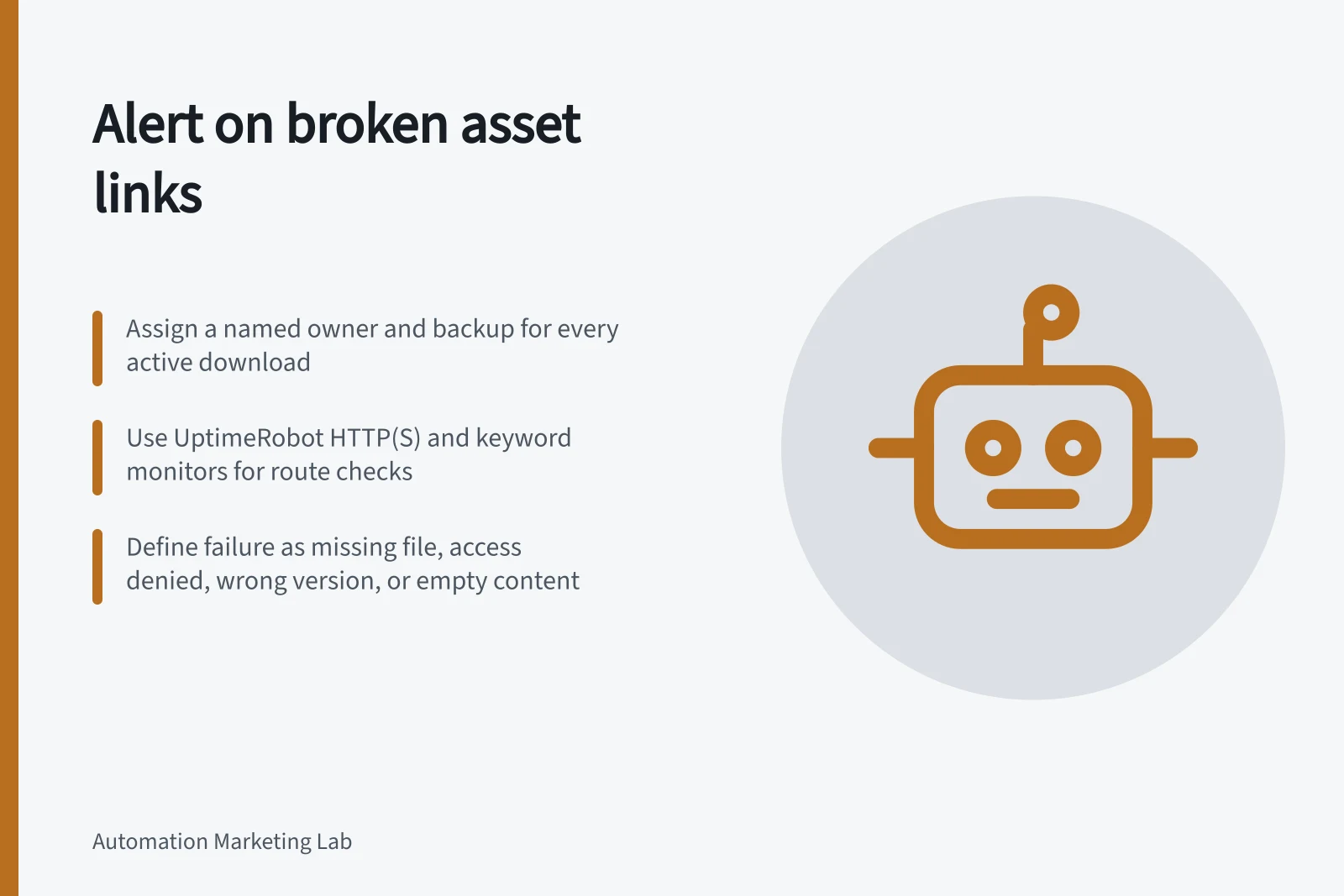
Treat a broken asset destination as an operational fault, and alert the responsible owner before a prospect reports it. Assign a named owner and backup to every active download.
In the team record beside each asset route, keep the asset name, route, owner name and email, backup name and email, and affected campaigns. Use the route to find the campaign list when preparing an alert.
Define a failed check as a missing file, access denied, a wrong version, or a destination that loads but no longer contains the promised resource. This gives the checker a clear pass-or-fail test.
Set up an UptimeRobot HTTP(S) monitor for the route and final destination, and a keyword monitor for the resource’s identifying title or version. Keyword monitoring can alert when a specified word or phrase appears or disappears, while a status-only check can miss a page that loads with the wrong content.
UptimeRobot’s free option is listed with checks every 5 minutes; use that as the initial interval and record the checker and schedule beside the route. For restricted assets, use an authorised test account and do not expose customer data.
Use multi-location checks to verify a failure from more than one location and reduce false positives. This helps avoid treating a single bad route as a confirmed outage.
Configure the failed-result alert to a Slack channel watched by the owner and backup. UptimeRobot provides real-time alerts and supports Slack integration.
Include the failed route, check time, observed result, affected campaigns from the team record, and the owner and backup in the alert. Create a tracking task where supported so the response has a record.
HubSpot simple workflows can send an internal email notification or create a task after a form submission, but their enrolment trigger cannot be changed.
Set an acknowledgement window before activating alerts, and define acknowledgement as a reply or an update to the tracking task. If the owner is unavailable or the window expires without acknowledgement, alert the backup or team lead with the failure details and have them assign a responder.
If the resource cannot be restored promptly, pause or replace the promise. After repair, rerun the check from the same reader-like environment and confirm that the destination contains the promised resource.
Review false alarms and ownership changes, and keep the named responder current. Record a review cadence and false-alarm threshold in the team record so monitoring noise is investigated rather than ignored.
Key Metrics for Asset Link Monitoring
- Recommended Check Locations
- Multiple (e.g., Sydney, Melbourne, Brisbane)
- Average Response Time (Best Practice)
- Under 1 hour
- False Alarm Threshold (Guideline)
- Less than 5% of total alerts
Monitoring Options for Asset Links
- Status-Only Check
- Only confirms if page loads; may miss wrong content
- Keyword Monitor
- Detects presence or absence of specific text (e.g., version number)
- Multi-Location Test
- Reduces false positives by testing from different regions
- Authenticated Access Test
- Uses authorised account to check restricted resources