Error Handling
Part of Building automated lead routing
Notifying a team when lead assignment fails
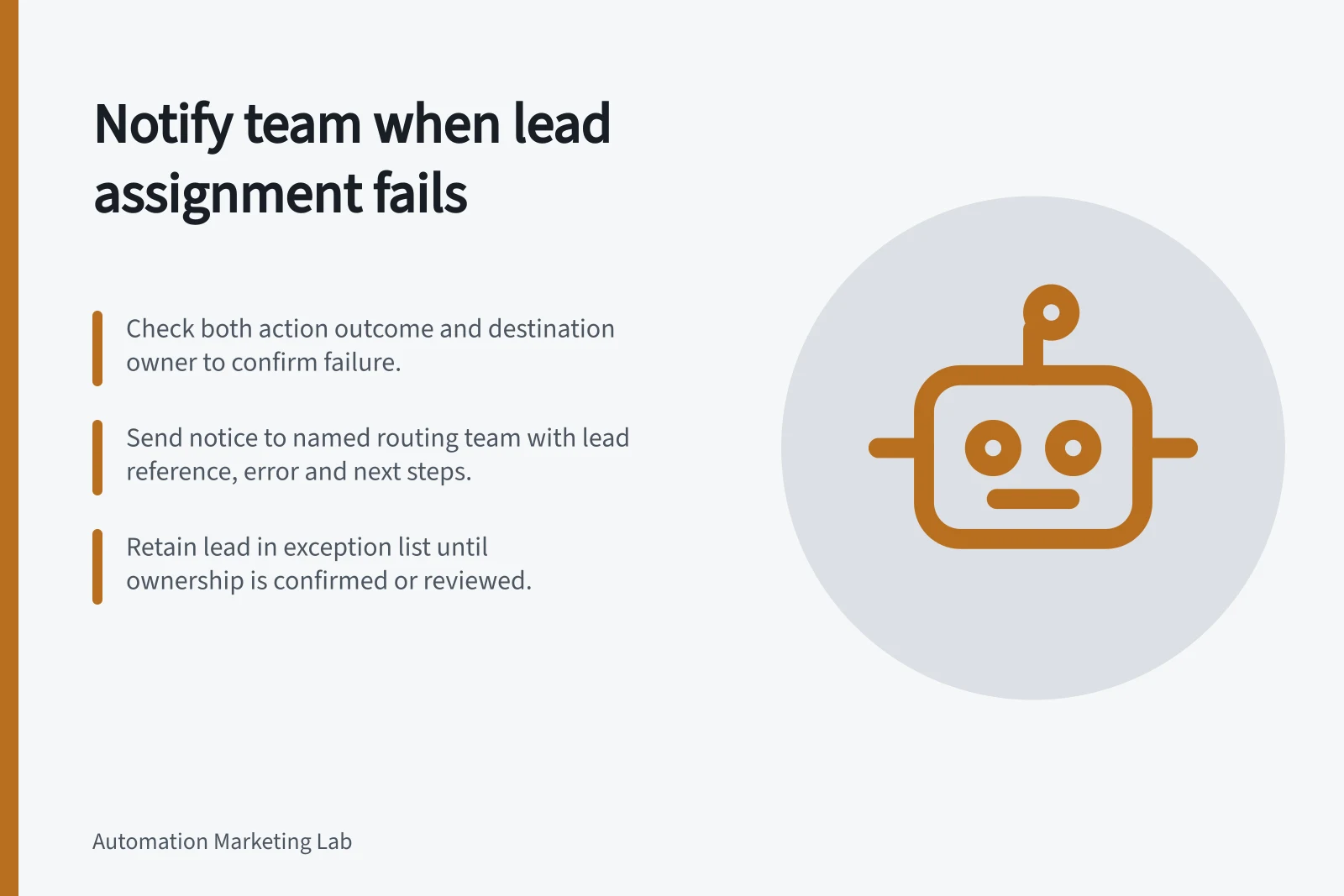
Detect a failed lead assignment, send an actionable team notice and keep the lead in an exception list until ownership is confirmed.
Notify the responsible team when an assignment was attempted but the intended owner or queue was not confirmed. The notice should identify the lead, intended destination, observed problem and next responder. Keep the lead in an exception list until ownership is confirmed or a reviewer records another outcome.
Define the failure
A lead without a required territory or interest value needs a routing-data decision. An assignment failure occurs after a destination has been selected: the update reports an error, or a later check finds a missing or different owner.
An unavailable assignee, rejected update or competing owner synchronisation may cause this, depending on the system. Treat a timeout as an uncertain result until the destination record is inspected.
Check both the action outcome and the owner on the destination record. If another system controls ownership, check again after its update. Record which system supplied the final value. An action that reports success does not establish that the intended owner remains in place.
HubSpot documents that with its Rotate record to owner action, if there is no eligible user to rotate to, or if no team is selected for team-based assignment, no owner will be assigned. For ticket or lead records, additional distribution options are available in beta. HubSpot also notes that if the HubSpot owner property syncs to Salesforce, the action may not work as expected because Salesforce may try to update HubSpot with the previous owner even after HubSpot clears ownership. Neither condition guarantees a workflow error notice.
Key Metrics for Lead Assignment Error Handling
- HubSpot Rotate Record Owner failure cases
- No eligible user or team selected
- Owner sync conflict risk with Salesforce
- Salesforce may overwrite HubSpot’s cleared ownership
- Power Automate 'Run after' trigger capability
- Starts error path on failure or timeout
- System-controlled ownership requires post-update check
- Final owner value must be validated after sync
Make the notice actionable
Send the notice to a named routing team or on-duty substitute. Include:
- The lead reference and workflow or rule version.
- The intended destination and owner currently shown.
- The attempt time, error or mismatch, and any pending retry.
- The responder and next decisionrepair, assign manually, retain an existing owner or escalate.
- A review deadline suited to the enquiry.
Use a controlled record view rather than copying unnecessary personal details into a broad team message. Where the system permits it, avoid repeated notices for the same unresolved attempt while updating the case if its state changes. If one assignee problem affects many leads, group the incident for responders but retain an outcome for each lead.
Check in the account which responders or teams receive the notice and whether their notification settings are active. A notice that is not delivered to the right person is not actionable.
Power Automate’s ‘Run after’ settings can start an error path when an action fails or times out. A catch scope can log the error and send a notice. Those controls report action outcomes; a separate owner check is needed when the action succeeds technically but leaves the wrong final owner.
Close the loop
Record each lead as confirmed assigned, manually reassigned, awaiting investigation or deliberately closed. Do not clear the exception because a notice was sent. After a repair, inspect the actual owner and confirm the responsible team can see the lead. If the first update’s result is uncertain, inspect the destination before repeating it.
HubSpot’s automation issues view identifies workflows with errors, and record workflow history shows action outcomes. Neither an issue label nor a cleared alert proves that every affected lead reached its intended owner. Keep the lead-level decision until confirmation.
For an acceptance check, use controlled cases for an action error, an unavailable assignee and a final owner mismatch where the chosen system permits them. Check the notice recipient, its contents and each lead’s final status.