Data Hygiene
Part of Marketing automation data hygiene
Keeping contact field values consistent across systems
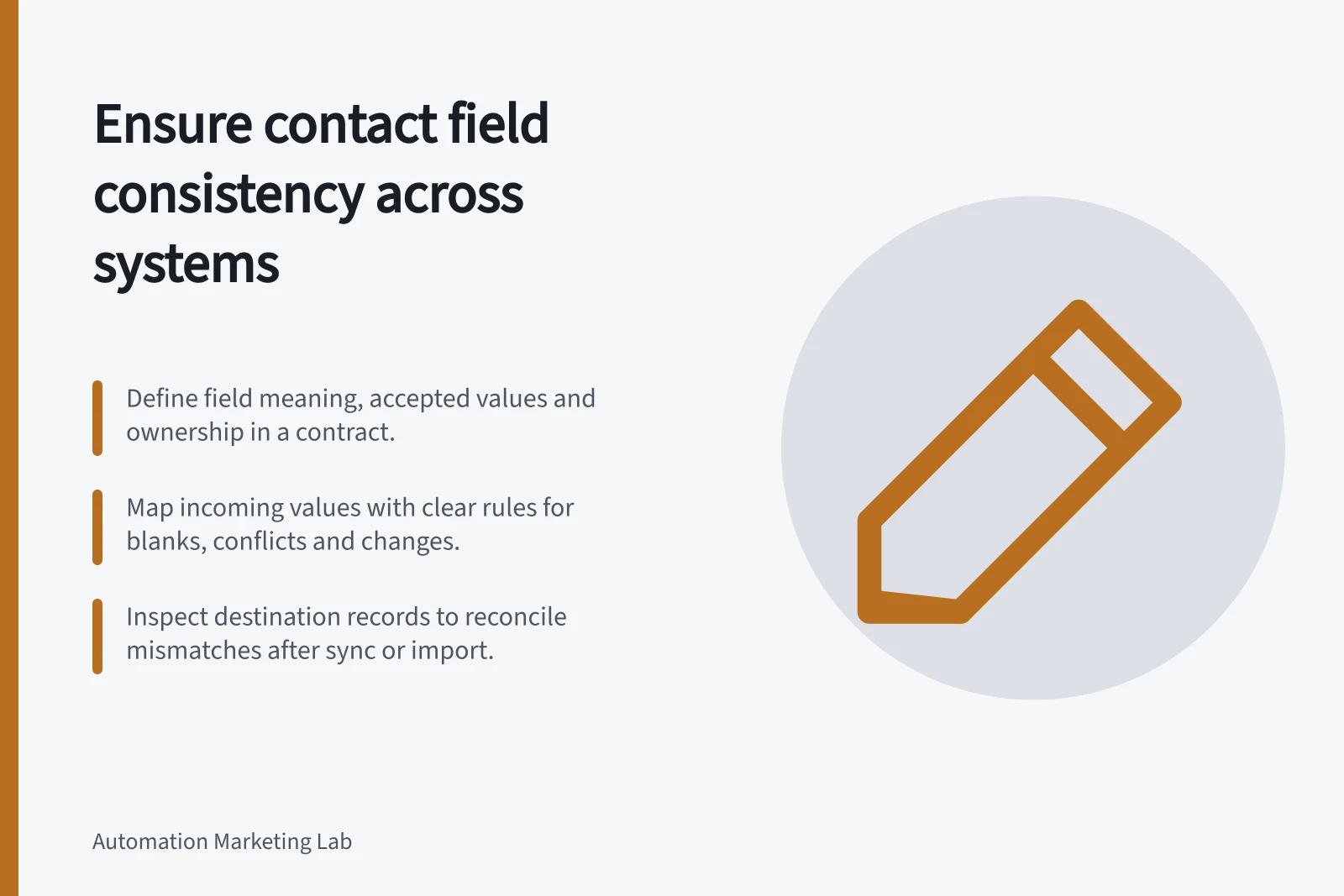
Define field meaning, accepted values, ownership and mapping rules so contact updates remain usable across connected marketing systems.
To keep a contact field consistent across systems, define its meaning, the values each system accepts and which system may change it. Map incoming values to those rules, then inspect the destination record. A connection can transfer a value successfully but change its meaning.
Write a field contract
Begin with one field a workflow uses, such as declared product interest. Record its source, destination, type, accepted values and owner, plus rules for blanks and conflicts. If one system stores Product A and another stores A, document that translation.
Contract item / Decision to record
- Meaning
- What question does the field answer?
- Values
- Which exact values can each system store?
- Authority
- Which source takes precedence when values differ?
- Blank
- Does it clear, preserve or flag the destination value?
- Change
- Who approves a new option and updates the mapping?
The contract is an operating practice, not a feature every platform offers. Give consent and suppression data its own approved rules; a generic latest-value-wins setting may produce the wrong result.
Check type and update direction
Compare source and destination field types. Free text may hold a value a dropdown cannot accept. A date needs an agreed meaning before it drives a timed action. For each mapping, specify the intended direction and conflict resolution.
HubSpot data sync documents mappings for field types, direction and conflicts. Some dropdowns cannot sync both ways; third-party API limits or read-only fields can also restrict updates. Creating or customising data sync field mappings requires Data Hub Starter, Professional or Enterprise. Available mappings still depend on the connected app and account.
File imports can report errors during import. HubSpot's import documentation describes viewing error details, including the impacted column and rows and the errored values, then replacing values in the import tool.
Data Sync Requirements and Limitations
- Required HubSpot Plan
- Data Hub Starter, Professional or Enterprise
- Two-way Dropdown Sync
- Not always supported – depends on connected app
- Read-Only Fields
- Can prevent HubSpot from updating destination values
- Import Error Reporting
- Available in HubSpot; shows column, row and errored value details
Treat new options as a controlled change
Suppose a form adds Product C. Decide what it means in every system and report that uses the field, then add or map the option in each destination before a workflow relies on it. If a destination cannot accept it, hold the value for review. Translate it to Other only if that meaning has been approved.
HubSpot's data sync documentation notes that not all Dropdown select properties can sync two ways, and that API limitations or read-only fields in the third-party app can prevent HubSpot from modifying fields. Check the connected app's supported field types and mappings before making that change part of a release procedure.
Reconcile the destination value
Define expected results for an accepted value, a blank, an unknown option and conflicting changes from both systems. Inspect the destination contact and any sync or import error. If a mismatch appears, keep the source value and record reference, correct the cause, identify similarly affected records and check their resulting values. Editing one contact may leave the next sync ready to repeat the error.