Automation Monitoring
Marketing automation integrations
Plan marketing automation integrations around record identity, field mapping, ownership and destination checks, then choose a suitable connection method.
A marketing automation integration should move a defined update between systems and make its result checkable. Identify the hand-off: what triggers it, which record should change, who owns the value and how you will confirm the destination state. Then choose the connection method.
Key statistics on Australian automation adoption
- Businesses saving with AI automation
- Millions annually
- Top marketing automation platform in Australia
- HubSpot
- Leading CRM provider for digital marketing
- Salesforce
Map each hand-off
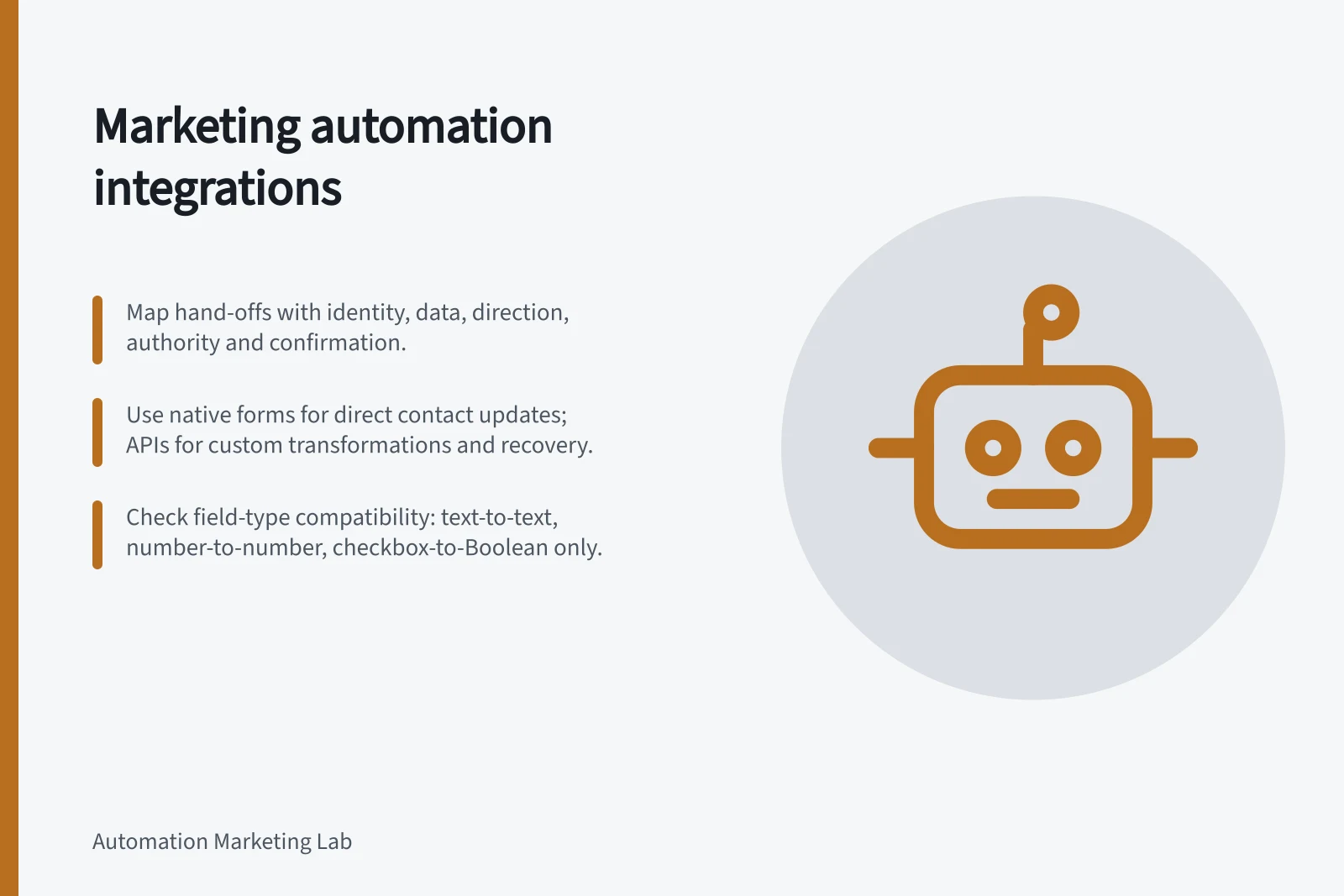
A form submission that updates a contact, a campaign response passed to a CRM and a webhook that announces a change are separate hand-offs. For each one, record:
Decision / What to specify
- Identity
- How the source record matches an existing destination record.
- Data
- The fields or event details the destination needs.
- Direction
- Which way changes travel.
- Authority
- Which system takes precedence when values differ.
- Confirmation
- What to inspect at the destination.
- Exception owner
- Who resolves an unmatched or rejected update.
Check the connector’s actual settings before enabling a broad sync. In HubSpot data sync, field mappings control direction and conflict handling. Matching options vary by connected app and object, and custom field mappings require Data Hub Starter, Professional or Enterprise.
Choose a connection that fits the hand-off
A native form can suit a direct contact update. An app connector can suit ongoing record sync if it supports the required object, fields and matching rules.
A webhook can notify a receiving service of an event; that service must validate and handle the request. An API integration allows custom transformations and recovery, with corresponding maintenance work.
Check the supported operations and subscription for the exact app connection. Also check what happens when the destination rejects a value. For example, HubSpot notes that some dropdown mappings cannot sync both ways and that third-party API limits or read-only fields can restrict mapping direction.
Before relying on a form connection, confirm that each form field is linked to the intended CRM property. The property determines where the submitted value is stored, such as on a contact or company record. A company property can result in a company record being created or updated and associated with the contact.
Choosing a connection method for marketing automation
- Native formPros: Simple, direct contact update. Cons: Limited to basic field mappings; requires correct property linking.
- App connectorPros: Supports ongoing sync with proper matching rules. Cons: May not support all objects or fields; depends on vendor capabilities.
- WebhookPros: Real-time event notification. Cons: Receiver must validate and handle request; no built-in error recovery.
- API integrationPros: Full control over transformations and recovery. Cons: Requires development effort and maintenance.
Check field-type compatibility
Field types affect whether a mapping can be two-way. HubSpot lists text-to-text, number-to-number, date picker-to-date picker, datetime-to-datetime, checkbox-to-Boolean, radio select-to-radio select and dropdown select-to-picklist as compatible pairs.
Some types are supported only as one-way text mappings. Third-party number, date picker, datetime and single-checkbox fields can map one way to HubSpot text fields; HubSpot number, date, checkbox, calculation and score properties can also map as text to third-party text fields.
For names, check whether the connected app stores a full name in one field or separates first and last names. When it has one full-name field, HubSpot treats the first word as First Name and everything after the first space as Last Name. Both HubSpot name mappings must be enabled for the name to sync correctly.
Field type compatibility in HubSpot integrations
- Two-way compatibleText-to-text, number-to-number, date picker-to-date picker, datetime-to-datetime, checkbox-to-Boolean, radio select-to-radio select, dropdown select-to-picklist
- One-way only (text mapping)Third-party number, date picker, datetime, and single-checkbox fields → HubSpot text; HubSpot number, date, checkbox, calculation, score → third-party text
Preserve identity and meaning
Before relying on ongoing sync, verify that the intended source and destination records have been matched. Keep a field map with the source and destination properties, accepted values, transformation and owner.
Decide whether a blank source value should clear an existing value, leave it alone or require review. Treat campaign membership as a relationship to a particular campaign rather than as a general contact field.
Default matching can also normalise non-unique names by stripping capitalisation, special characters and punctuation before comparison. This is relevant when matching companies or products by name, depending on the connected app.
For object owners, HubSpot syncs owners using the Email Address property; if no email address is available, it uses the Name field. Confirm which identifier the connected app supplies before relying on owner values to stay aligned.
Set record matching deliberately
Data sync can use default matching, selected fields or no matching. Default identifiers are email address for contacts or leads, company name or domain for companies, and SKU or name for products.
Matching is separate from field mappings and filters. For example, records can still match on SKU when the SKU field mapping is turned off. The company domain property must be included in a default field mapping to be used as a deduplication identifier.
If you select your own matching fields, only text fields can be used as unique identifiers. HubSpot uses only the selected property, so choosing Website URL instead of company domain can match companies with different domains. Companies with the same domain but different website URLs may fail to match.
Check the destination and handle exceptions
Inspect the resulting record or campaign membership, rather than relying only on a connector success message. Keep enough context to investigate a mismatch: record references, intended action, time and observed outcome. Use record references instead of personal details in routine alerts where possible.
Verify the hand-offs with controlled records covering a new contact, an existing contact, a missing required value and a repeated event. Confirm the destination state for each.
In this guide
- Mapping form fields into a marketing contact recordCheck the property, object, value type and repeat-submission behaviour behind each marketing form field.
- Passing campaign membership and statuses into SalesforceMap the person, campaign and status before passing marketing campaign membership to a CRM, then check the resulting member record.
- Checking webhook payloads from a marketing platformValidate the origin, event type, identifiers and shape of a marketing webhook before processing or acknowledging it.
- Checking a marketing connector's behaviour after a failed contact updateInspect the destination record, sync status, mapping and next retry after a marketing connector fails to update a contact.