Data Hygiene
Part of Marketing automation data hygiene
Preventing duplicate contacts during automated imports
Choose a contact match key, catch conflicting rows before import and reconcile creates and updates to prevent duplicate records.
Prevent duplicate contacts in a recurring import by deciding how each incoming record matches an existing one before the run. Check the key within the batch and against destination records, hold conflicting matches, then reconcile the contacts created or updated. A name alone is too ambiguous for an automatic match.
Choose the match rule for the actual import route
Record the source identifier, destination identifier and intended action for each row. Decide what happens when the key is blank, changed or already belongs to another record. Keep the same matching rule across runs so the next batch can find a contact created by the previous one.
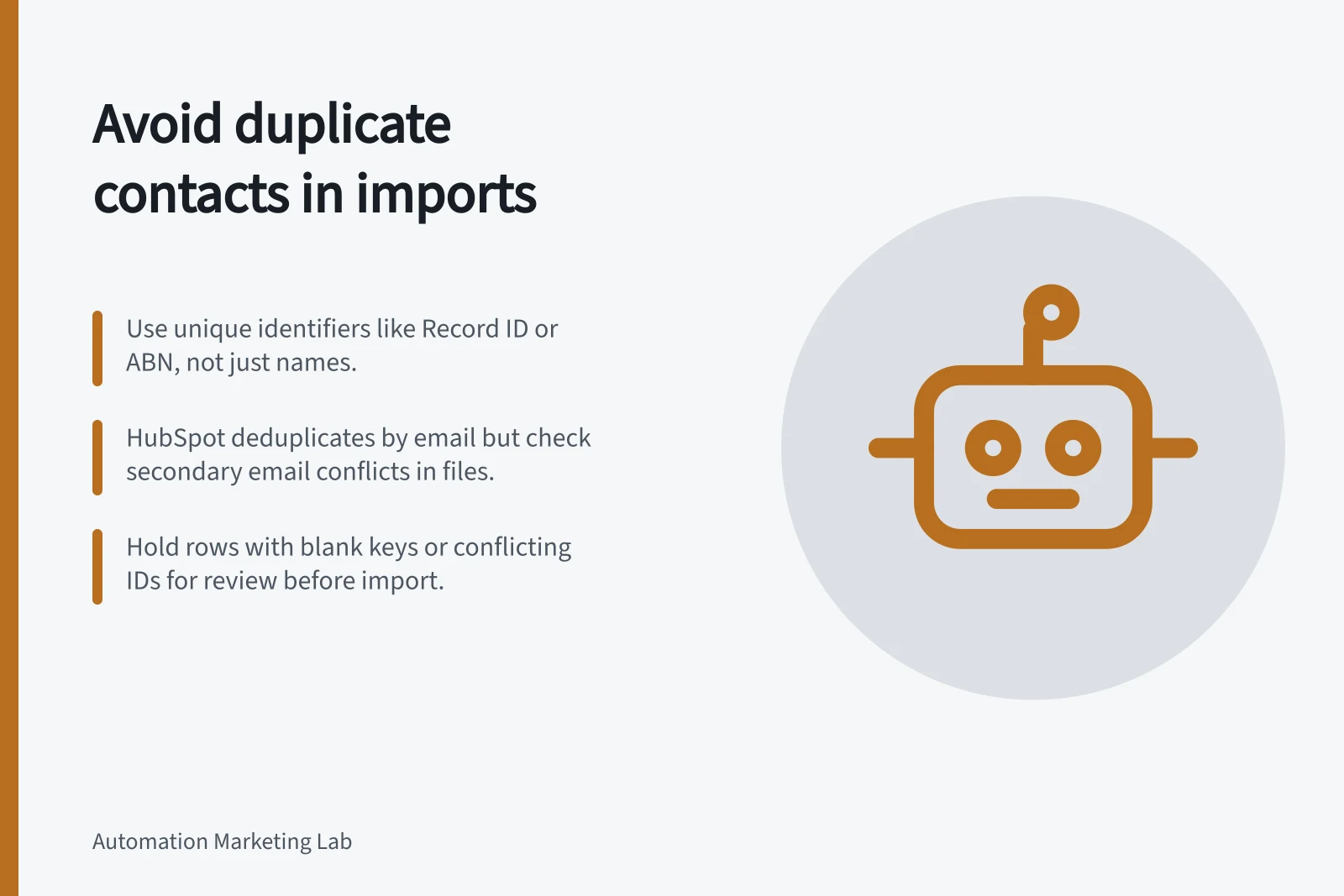
HubSpot automatically deduplicates contacts by email address. For deduplication via file import, you can include the Record ID property or custom properties that require unique values in the import file. These rules describe file imports; an API process or data-sync connector has its own matching behaviour and must be checked separately.
Email is useful but can change. A new address may belong to an existing person, while two source records using one address may represent a conflict. Do not create a second contact merely to clear an ambiguous row.
Matching Rules: File Import vs Data Sync in HubSpot
- File Import MatchingUses email by default; supports custom unique properties or Record ID. Rules apply directly to the import file.
- Data Sync Connector MatchingSeparate from field mappings; options include default fields, custom field selection, or no matching. Varies by app and object type.
Check the batch before it runs
Review four cases:
- The same key appears on multiple rows. Determine whether they are repeated updates to one contact or a source-data conflict.
- The key is blank. Hold the row or use another approved identifier; do not fall back to a name match.
- Two identifiers point to different existing contacts. Stop the affected row for review.
- An existing contact is supplied with a changed address. Confirm the identity and update rule before replacing the address.
HubSpot documents a file-import edge case: if a file includes a contact’s secondary email and Record ID columns, and the secondary email is being used as the unique identifier, that secondary email can replace the primary email. Check this combination when preparing a HubSpot file.
Pre-Import Batch Review Checklist
- Check for duplicate keys in the batchDetermine if multiple rows refer to the same contact or indicate a source data conflict.
- Handle blank identifiersDo not fall back to name-based matching; hold the row for manual review or use an alternative approved identifier.
- Review conflicting identifiersIf two identifiers point to different contacts, stop the row for investigation.
- Verify identity before updating contact detailsConfirm changes to existing records (e.g., email) are intentional and accurate.
Make repeat runs recoverable
Keep a run reference. Before retrying a failed or uncertain run, inspect destination records and errors so a completed create is not submitted again as new work. Where the import process supports separate create and update operations, use the intended action to prevent an unmatched update from becoming an accidental create.
If a connector or data sync supplies the records, inspect its matching settings rather than applying file-import rules to it. HubSpot data sync matches records separately from field mappings. Its matching methods include default settings, choosing fields or no matching, and these options are not available for every app or object.
Reconcile the result
Compare intended creates and updates with actual destination contact IDs. Investigate rejected rows, duplicate-key errors and unexpected new contacts. Correct the source or match rule before another run. Resolve existing duplicates under the organisation’s merge and audit process; a merge can affect history and associations.
For an acceptance check, define expected outcomes for a new contact, an existing contact, a repeated row, a missing key and conflicting identifiers. Check the resulting IDs in the chosen system.
HubSpot Deduplication & Import Best Practices
- Default Match Key
- Email address
- Recommended Unique Identifier
- Record ID or custom property with unique values
- Primary Risk Area
- Secondary email replacing primary email during import
- Merge Impact
- Can affect contact history, associations, and audit trails