Consent Approvals
Automated campaign approvals
Automated campaign approvals move a draft to the people who must review it, record their decisions and release it only when the approved version is ready.
Automated campaign approvals move a draft to the people who must review it, record their decisions and release it only when the approved version is ready. Start with a map of decisions, then connect the approval state to the actual publishing control.
The automation should remove chasing and ambiguity, not turn silence into permission to send.
Define what is being approved
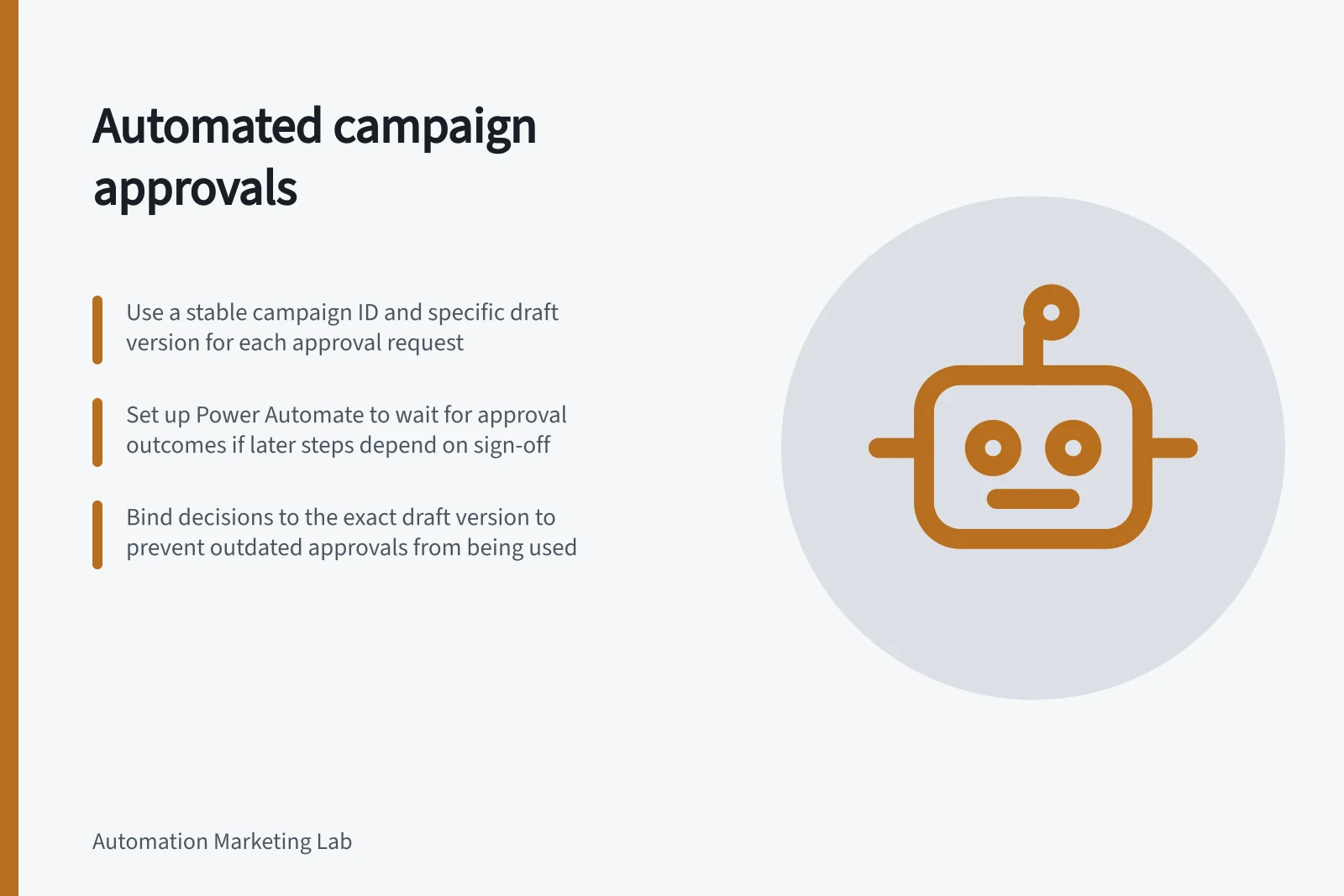
An approval request needs a stable campaign identifier and a specific draft version. Include the channel, intended audience, send date, subject or creative preview, destination links, offer terms and any evidence needed to check claims.
A reviewer who sees only “September campaign” cannot know which copy or audience their decision covers.
Separate content approval from launch authorisation. A brand reviewer may accept a visual while a data owner still needs to check the audience selection.
A campaign can be approved for a small internal test without being authorised for a full customer send. Make these states visible instead of folding them into one “approved” label.
Choose the approval action deliberately
In Power Automate, “Create an approval” starts an approval but does not wait for its outcome. “Start and wait for an approval” both creates the request and pauses the flow until the response condition is met. Choose based on whether later workflow actions must wait for sign-off; otherwise, the campaign process may continue before the decision is available.
The standard approvals connector supports Power Automate in all Power Automate regions. Check the connector's product and region availability against the environment you plan to use before designing around it.
Power Automate Approval Limits and Best Practices
- Approval Connector AvailabilitySupported in all Power Automate regions
- Approval Flow Pause Behavior'Start and wait for an approval' pauses flow until response; 'Create an approval' does not
- Maximum Recipients per ApprovalLimited by connector data size; avoid bulk approvals with mandatory responses
- Guest User AccessCannot approve via Outlook actionable email; must use Power Automate portal
- Flow Creator VisibilityDisplayed in approval details to prevent spoofing
Route by the decision required
Before routing, decide what each approver is accountable for. A product expert checks product accuracy; a marketer checks positioning; the person responsible for customer data checks selection and suppression.
If one approver covers all three, make that accountability explicit. The sibling article on routing campaign drafts to the right approver covers the routing matrix, substitutes and approval patterns.
Check the approval channel and request data
Approval notifications have operational constraints that can affect who can review a campaign. Actionable approval emails are sent from a standard email account; a separate custom email notification can link to the approval, but recipients cannot approve or reject directly from that message. Guest users cannot act from actionable Outlook approval emails and must use the Power Automate portal.
Review how the approval details appear to reviewers. Power Automate approval timestamps are shown in UTC, and the flow creator is displayed in approval details to help prevent spoofing of the sender’s identity. Tell reviewers that timestamps are in UTC and that the flow creator appears in the approval details.
If reviewers are assigned through the connector, the AssignedTo field accepts an email address, User Principal Name or Microsoft Entra ID user ID. Multiple identities can be separated with a semicolon, and different identity formats can be mixed. Use these formats when populating the AssignedTo field.
Test attachments and response options with the intended approver group. Attachment names must be unique for approval notifications to be sent, and custom-response approvals sent to many users with an everyone-must-approve setting can fail because of data-size limits in the results field. These constraints may affect how much material to include in one request.
Bind the decision to the current draft
Keep the reviewable creative and audience definition together with a version number or snapshot. If someone changes a material claim, price, destination, offer condition or recipient segment after approval, invalidate the affected sign-off and reroute it.
Small formatting corrections may follow a lighter rule, but specify that rule in advance. Otherwise, the approval record proves only that an older draft was accepted.
For a large send, add a manual release gate close to launch; the sibling article on adding a manual approval step before a large send covers the detailed checks.
Plan for delay and failure
Decide that a timeout never counts as approval. The sibling article on handling approval timeouts in a campaign workflow covers deadlines, reminders, escalation, resubmission and cancellation.
Keep a usable record
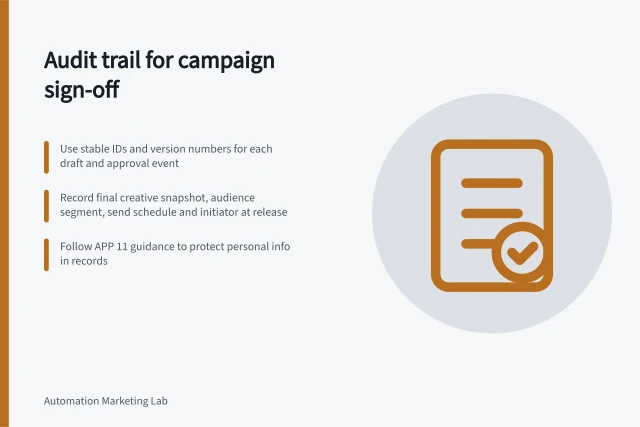
The sibling article on keeping an audit trail of campaign sign-off covers the data set, retention and export checks. Set a review cadence, such as a quarterly check of rerouting and last-minute approval rates.
In this guide
- Routing campaign drafts to the right approverRoute a campaign draft according to the decision it needs, not the nearest available manager.
- Adding a manual approval step before a large sendA manual approval step before a large send is a final release decision about the exact campaign and audience about to go out.
- Handling approval timeouts in a campaign workflowAn approval timeout means the campaign has no decision by its deadline.
- Keeping an audit trail of campaign sign-offA campaign sign-off trail should answer four questions later: which version was reviewed, who decided, what they decided and what actually went out.