Consent Approvals
Part of Automated campaign approvals
Adding a manual approval step before a large send
A manual approval step before a large send is a final release decision about the exact campaign and audience about to go out.
A manual approval step before a large send is the final release decision for the exact campaign and audience about to go out. It sits close enough to launch to catch late changes, but after earlier content reviews have had time to resolve substantive issues. Treat it as a hold that must be affirmatively cleared.
Define the trigger and the authority
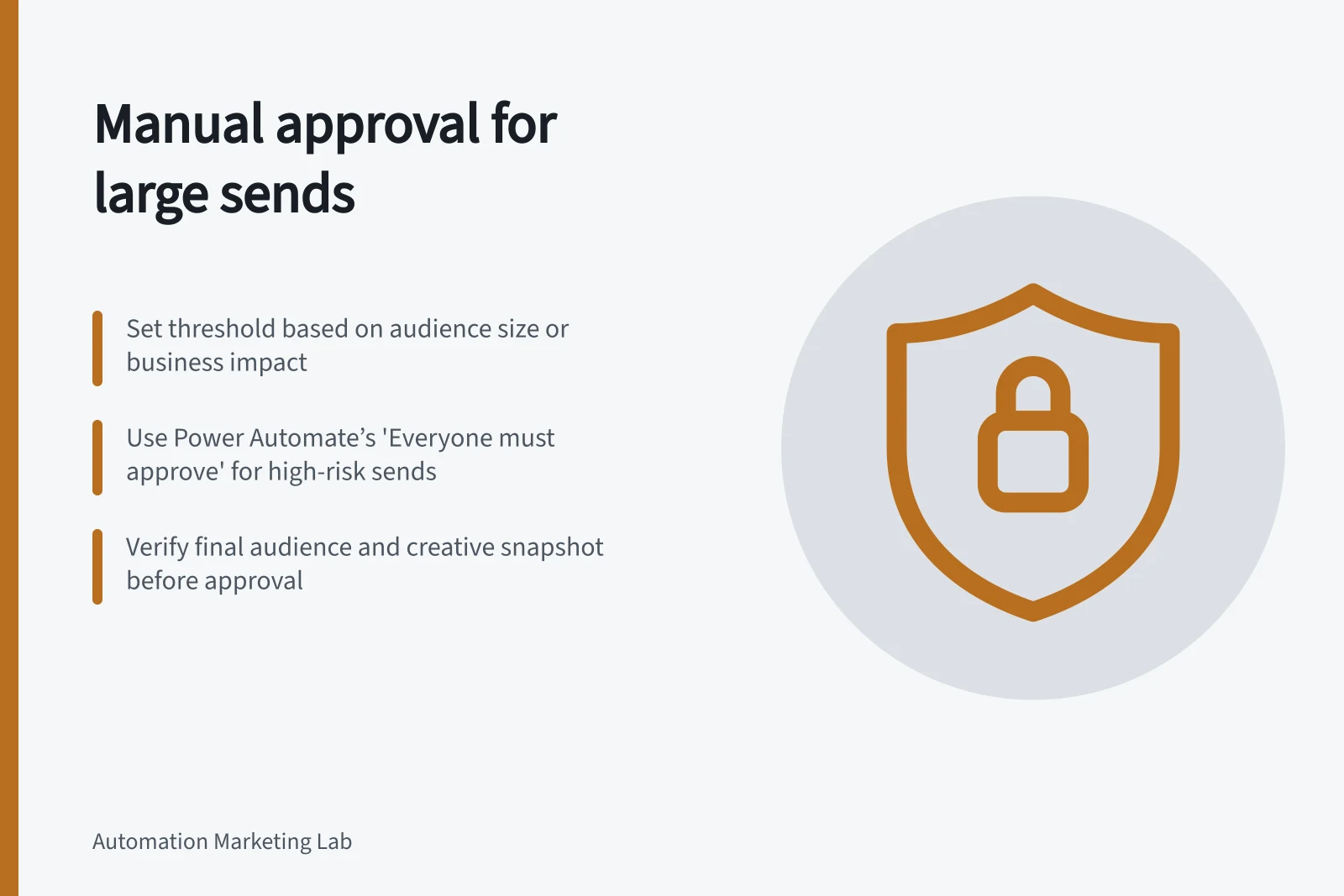
Set a threshold that reflects your operation: audience size, business impact, offer risk or another documented factor. Do not call an arbitrary number an industry standard. State who may release the send and whether a second reviewer is required.
In Microsoft Power Automate, a “first to respond” setting can release after one answer; an “everyone must approve” setting waits for all assigned responses. Choose the behaviour your rule requires.
To add the hold to an existing Power Automate flow, locate the send action and insert Start and wait for an approval immediately before it. Include the campaign ID and version, send window, estimated audience and exclusions in the approval request so the reviewer can assess the launch state.
Choose Approve/Reject - Everyone must approve when every assigned reviewer must clear the send, or Approve/Reject - First to respond when one response is authorised to decide. Route an Approve response to the send action and a Reject response to a path that ends without sending; do not treat the approval action merely completing as approval.
Keep the large-send gate separate from copy approval. An approved sentence does not validate the final recipient list, suppression rules, dynamic content or schedule.
The final approver should see a concise launch sheet: campaign ID and version, send window, estimated audience, exclusions, sample render, working destination links and a summary of earlier sign-offs.
Check the exact send state
Take the final audience and creative snapshot after segmentation and personalisation are set. Recheck test sends for broken tokens, incorrect names and mobile layout. Verify the sender identity and links, including tracking parameters if used.
Put the current campaign version and audience details from that snapshot in the approval request. Before release, compare the approved version with the version queued to send; if they differ, hold the send and request approval for the current version.
If an offer is time-bound, compare the send schedule with its actual validity period.
If a material element changes after manual sign-off, invalidate it. This includes a new subject, offer, audience rule, landing page or send time where timing affects the claim.
A small edit can have a narrower treatment if the team has written down what qualifies; otherwise, reroute. The person releasing the send should see the current version and the version they approved side by side.
Make the gate fail closed
The send action should depend on an affirmative approval for the current version. A rejected, cancelled, timed-out or missing decision keeps the campaign unsent. Test those paths with a non-customer test campaign.
In Power Automate, the approval action waits for approvers’ responses before the flow continues. Make the send action reachable only from the affirmative approval path; a rejection must end the flow without sending.
Record who released the final send and when, alongside the campaign identifier. An email saying “looks good” may be useful feedback, but it should not silently override the formal release state.
A useful gate adds a short pause for a high-impact decision without making every campaign wait for a ceremonial click. Review how often it catches an issue and whether the threshold or checklist needs adjustment.